Upload one Canva PDF
Choose the finished multi-page carousel PDF once instead of manually exporting and uploading every Canva page.
CANVA PDF GUIDE
Separate a finished multi-page Canva PDF into ordered, Instagram-ready images without exporting every page one by one.
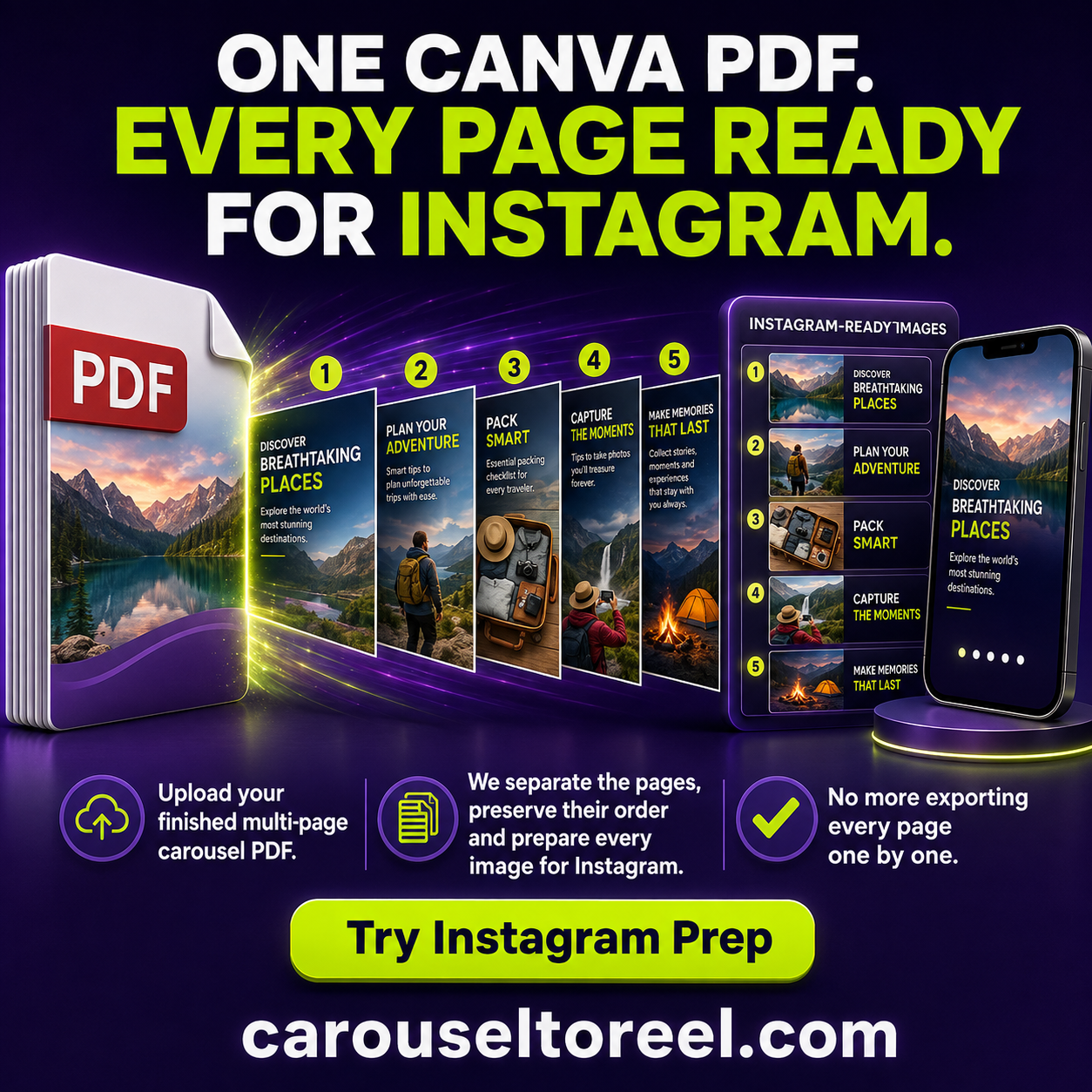
Choose the finished multi-page carousel PDF once instead of manually exporting and uploading every Canva page.
Each PDF page becomes a separate static image in the same sequence as the original Canva carousel.
Choose one Instagram format, then download the prepared pages as individual PNG files or one ZIP file.
Download the complete Canva design as a multi-page PDF and confirm that the pages are in the order you want people to swipe through them.
Choose Upload carousel PDF in Instagram Carousel Prep. Every PDF page becomes a separate image in the same order, entirely inside your browser.
Select portrait 4:5, portrait 3:4, square 1:1, or landscape 1.91:1. Every full page is fitted proportionally without cropping or stretching.
Download individual PNG files or one ZIP. Open the ZIP first, then select its extracted PNG files when creating the Instagram carousel.